Background changer workspace
Add transparent images
Drop transparent PNG or WebP images here, or choose a batch from your device.
Up to 20 images, 20 MB each
How it works for a batch of photos
Add your cutouts
Upload up to 20 transparent PNG or WebP files at once.
Choose a background
Pick White, Solid color or Gradient. Use Full for an edge-to-edge background or Partial to fill just a portion of the canvas.
Check and export your images
Compare Before and After, then download a JPG or WebP or save the whole batch as one ZIP.
Have photos with an existing backdrop? Remove it first and bring the transparent cutouts back here. Bulk Background Remover
Bulk Image Background Changer: Add Solid or Gradient Backgrounds
Add a white, solid color or gradient background to up to 20 transparent PNG or WebP images at once. Apply the same background to the whole batch and download your JPG or WebP files in one ZIP. It’s free to use, and your images stay on your device.
- Up to 20 images per batch
- Processed privately in your browser
- Export JPG, WebP or a batch ZIP

 BeforeAfter

Customize Backgrounds and Export Images in Bulk
Add a full or partial background
Fill the entire canvas or choose how much to cover. Pick a side or set a split angle, then leave the rest white or transparent. Export as WebP to preserve transparency.
Apply the same background to multiple images
Set up one image and select Apply to All. Choose Keep individual settings to preserve backgrounds you’ve already customized.
Set custom canvas sizes and filenames
Enter a width and height, and the editor centers the image without stretching it. Keep the original filenames, add a prefix or use a numbered name such as product-photo-1.webp.
One product photo, four background styles
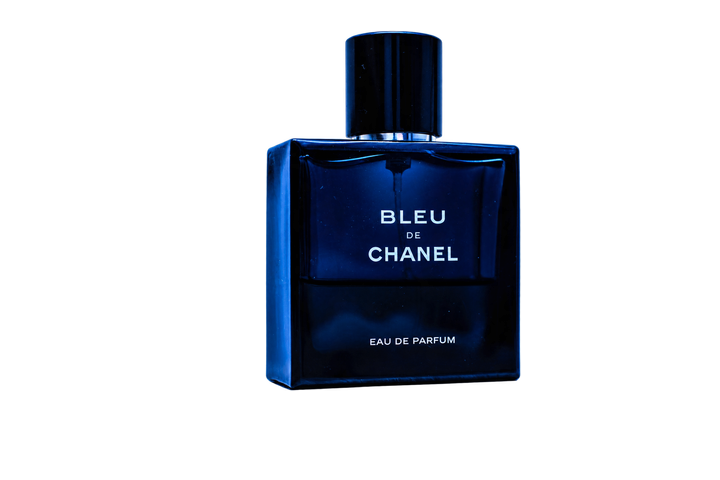
See how the same perfume bottle looks on four backgrounds. Use solid white for a catalog thumbnail, or enter a brand HEX color to match your store. The coral example uses #FF6B54.
For a storefront banner, try the cyan-to-violet gradient. For a campaign graphic, set Partial coverage to 50% on the right and choose White for the remaining area. That gives you the blue-and-white split shown here.




Your photos stay on your device
Your browser checks transparency, previews the new background and creates the download locally. Save the finished images before refreshing or closing the tab.
Read our privacy policyCreate a Storefront Banner With One Transparent Side
Add a solid teal background to the right half of your product photo. Leave the left half transparent so your storefront background can show through, with room for a headline beside the product.


Frequently asked questions
Ask us a questionCan I add a white background to multiple images at once?
Yes. White is selected by default. Add your transparent cutouts, check the previews and download the ready batch as a ZIP.
Why was my image skipped?
JPG files and fully opaque PNG or WebP files need background removal first. Save a transparent cutout with a visible subject, then upload that PNG or WebP.
How do I save a half background with transparency?
Choose Partial, set the fill to 50% and set Remaining area to Transparent. Download as WebP to keep the transparent area. JPG exports fill it with white.
Will the download keep the original dimensions?
Original dimensions keeps the source size up to 4,096 px per side and 12 megapixels. Larger images are scaled down proportionally. Use Custom dimensions to set a different canvas.