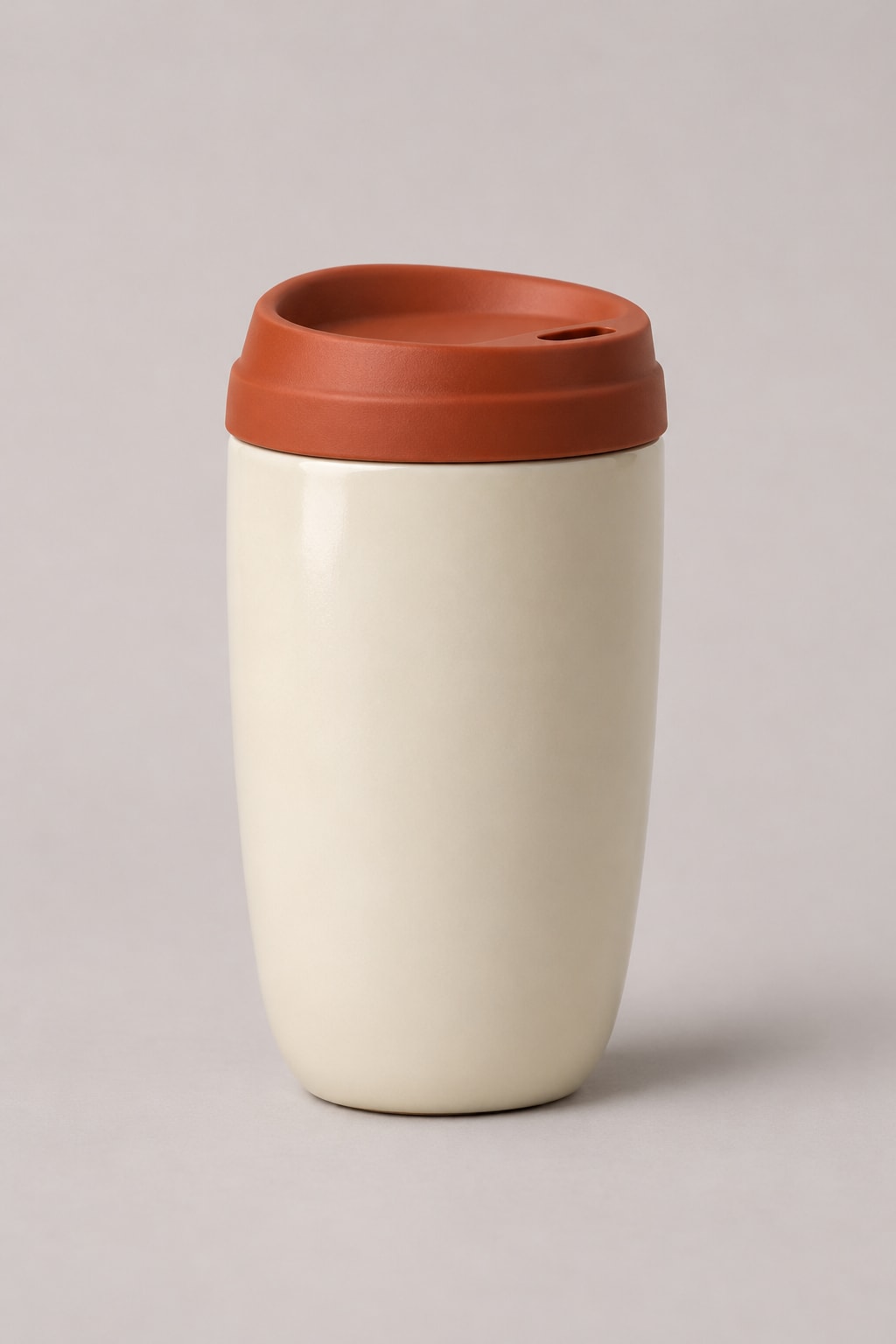
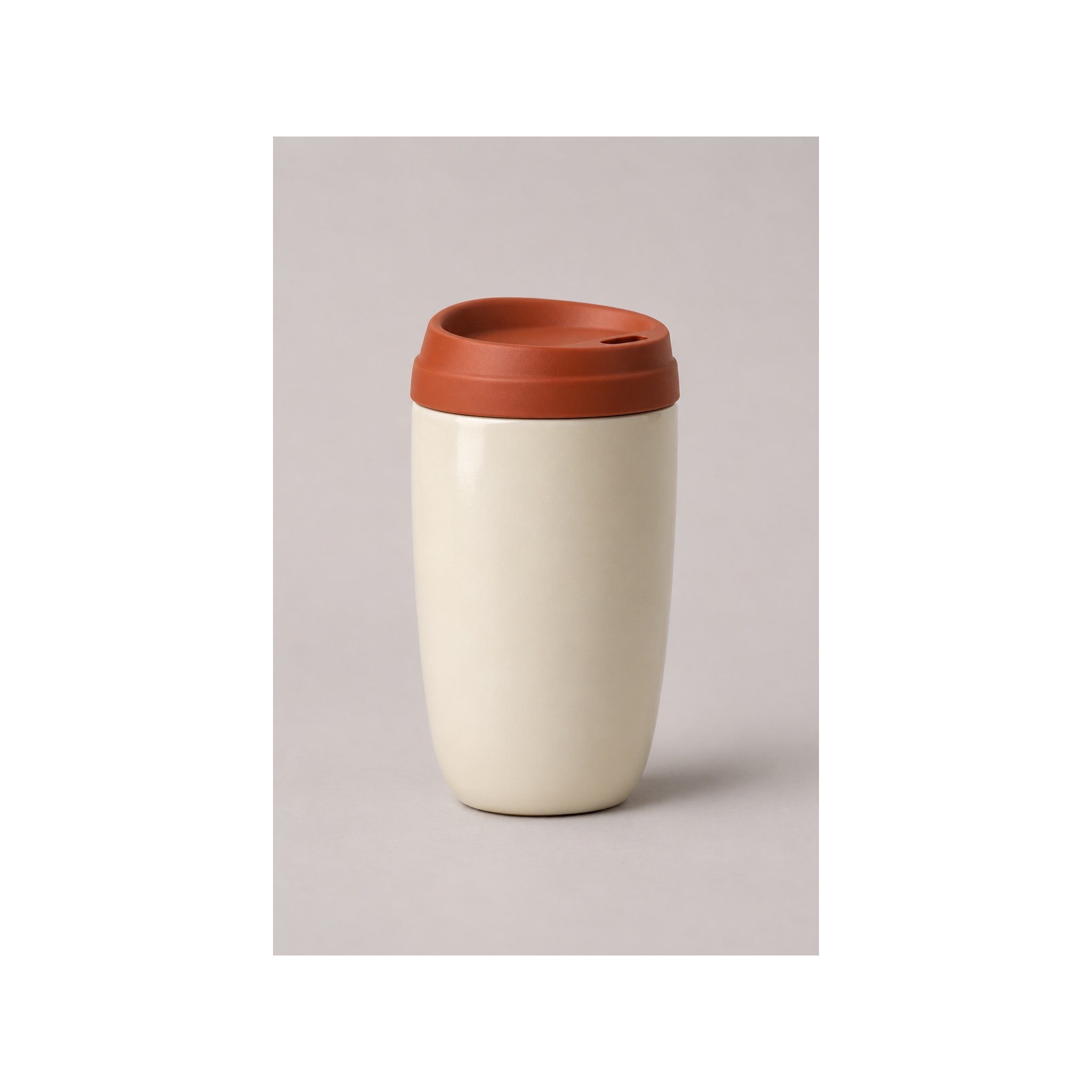
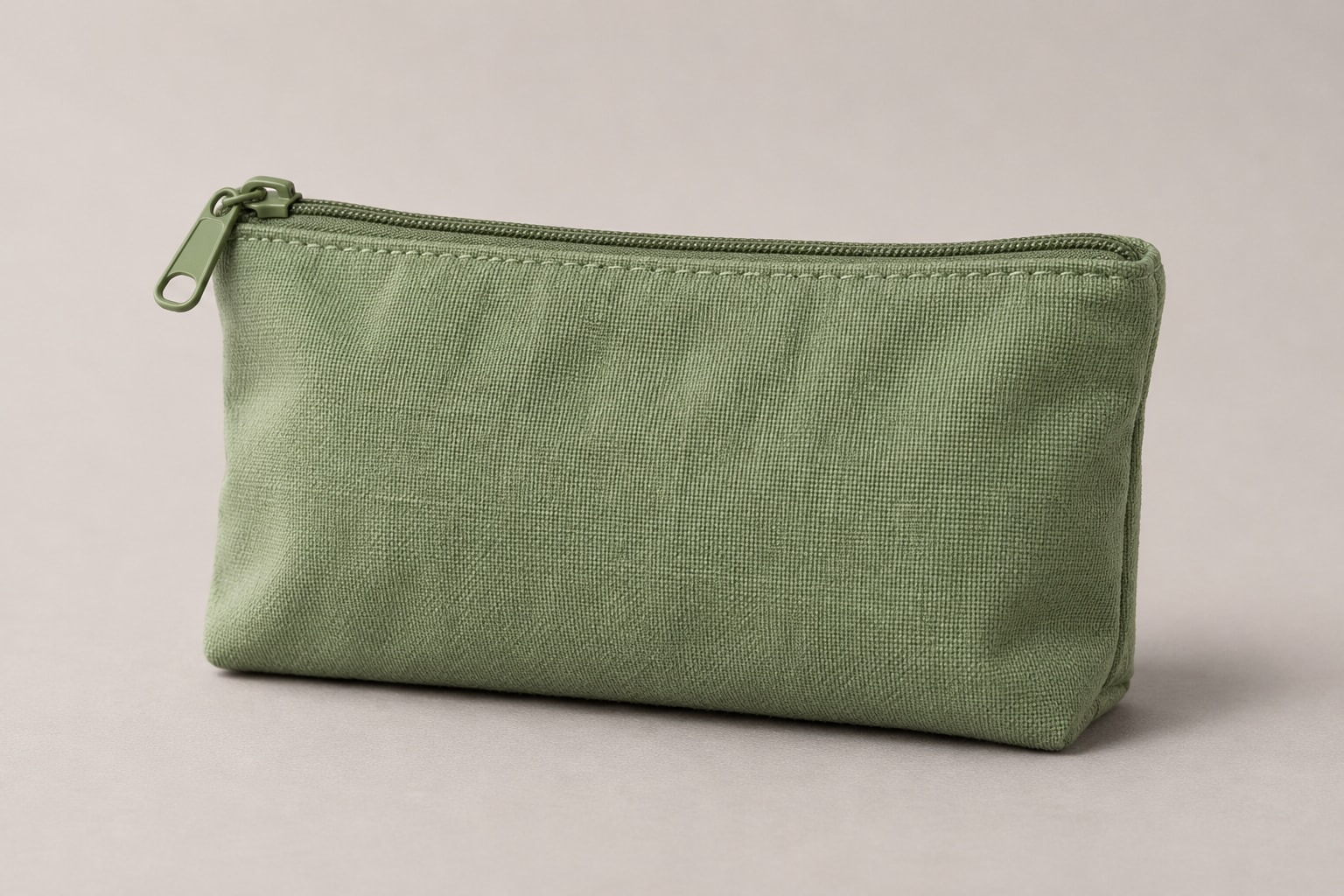
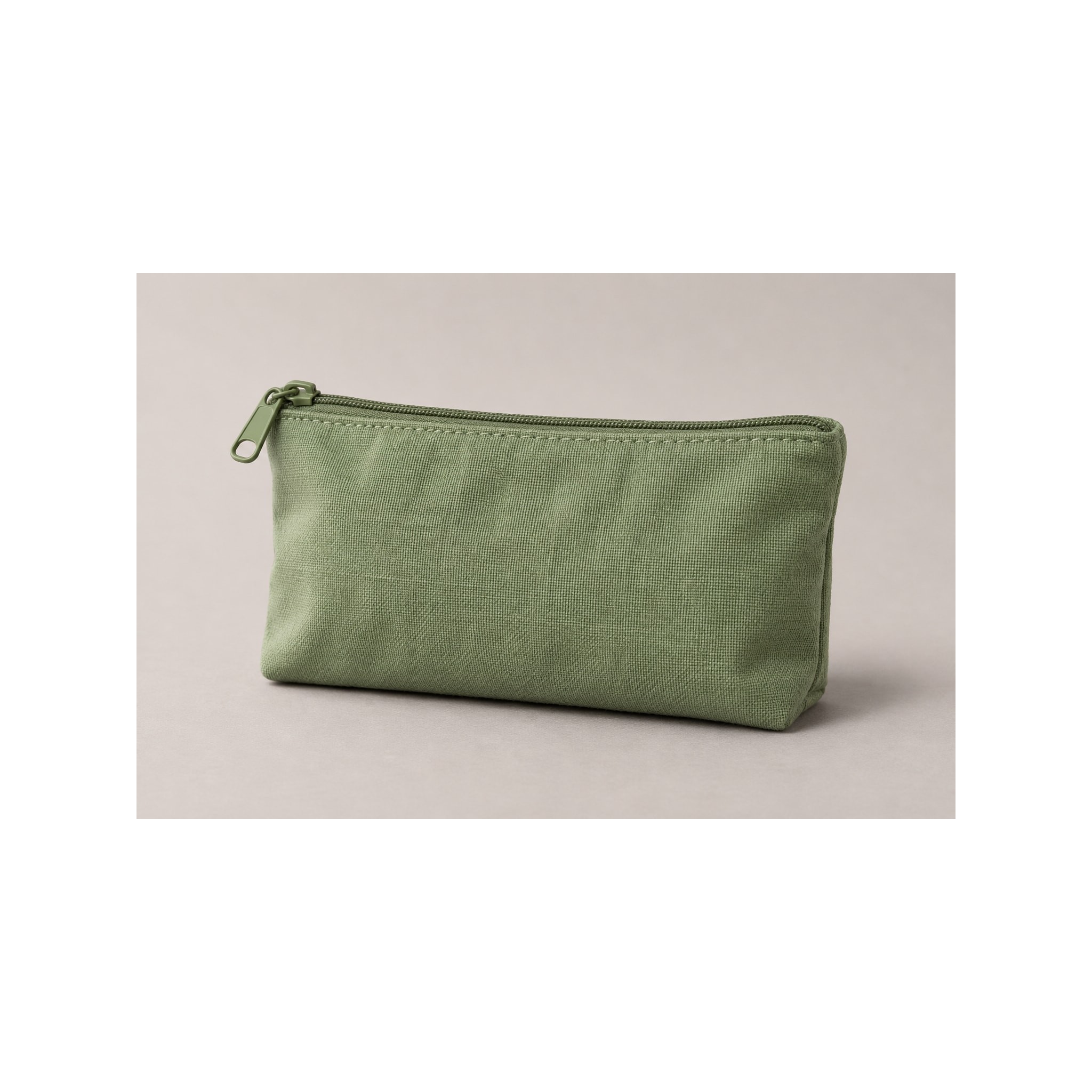
Prepare Shopify product images with consistent framing
A product catalog looks more deliberate when featured images share a canvas and framing approach. This Shopify preset prepares a 2048 × 2048 pixel square while keeping the complete photograph visible. It starts with JPEG at 90% quality and processes your files in the browser. Use the export as a catalog preparation step, then check your actual storefront; resizing cannot correct poor focus, unsuitable lighting or an inaccurate product photograph.
Recommended dimensions and the upload ceiling
Shopify recommends 2048 × 2048 pixels for square product images. Its current product-media guidance permits images up to 5000 × 5000 pixels, or 25 megapixels, and requires files smaller than 20 MB. These are upload constraints, not reasons to make every delivery file as large as possible. This preset does not enforce an exact byte target: review each exported size and adjust quality if necessary.
Preserve shape instead of stretching the product
Our preset fits the entire source into the square, preserves its aspect ratio, and fills unused canvas space with white. For example, a 4000 × 2000 landscape photo occupies 2048 × 1024 pixels centered inside the square. No product edges are cropped. Smaller sources are not enlarged, so they may have wider borders. A consistent canvas helps grid alignment, but your theme can apply its own crop or image-area settings.
- Choose a different workflow if the image must remain transparent: this platform canvas flattens transparency onto white.
- Keep your original master for later reframing. Exporting does not retain original camera metadata or high-bit-depth source data.
Zoom needs both theme support and real source detail
Image zoom depends on the chosen theme or gallery feature and its settings. Supply enough genuine image detail for the enlarged view; placing a tiny photo on a 2048px canvas does not create new detail. Check the theme’s documentation for any minimum source dimensions, enable its zoom option when available, and test the live product gallery on desktop and mobile. This tool cannot activate storefront zoom or certify theme compatibility.
How it works
- Start with sharp source photographs and review the selected Shopify product preset. JPEG at 90% quality is the starting point, not a mandatory Shopify format or quality requirement.
- Drop the batch, wait for ready rows, and inspect the framing and lettering in the original/converted preview. Check that the product remains large enough within the white square.
- Review file sizes against Shopify’s under-20MB requirement. Re-compress after changing settings, download the batch, then upload a sample to Shopify and review collection grids and zoom before replacing all images.
Frequently asked questions
Does a 2048px canvas guarantee a sharp zoom view?
No. Zoom magnifies the detail that actually exists in the source and depends on the theme’s gallery. A small image padded to a larger canvas remains a small image. Use a higher-resolution original rather than expecting resizing to reconstruct detail.
Will the tool automatically get every export below 20 MB?
No. Output size varies with content and encoding. Inspect ready rows, reduce JPEG quality only as far as your detail checks allow, or prepare a smaller custom export if the storefront does not need the square preset.
Should I compress images repeatedly before uploading to Shopify?
Avoid repeated lossy generations. Work from the master, make one reviewed export, and keep it. Shopify already optimizes storefront delivery; this tool is primarily useful for consistent framing and preparing compatible files, not as a required extra compression step.