I Tested a White Product Photo Background at 75% and 95% JPEG Quality
A pixel-by-pixel test of what happens where a product photo meets white padding, plus a quick check before you publish a listing.
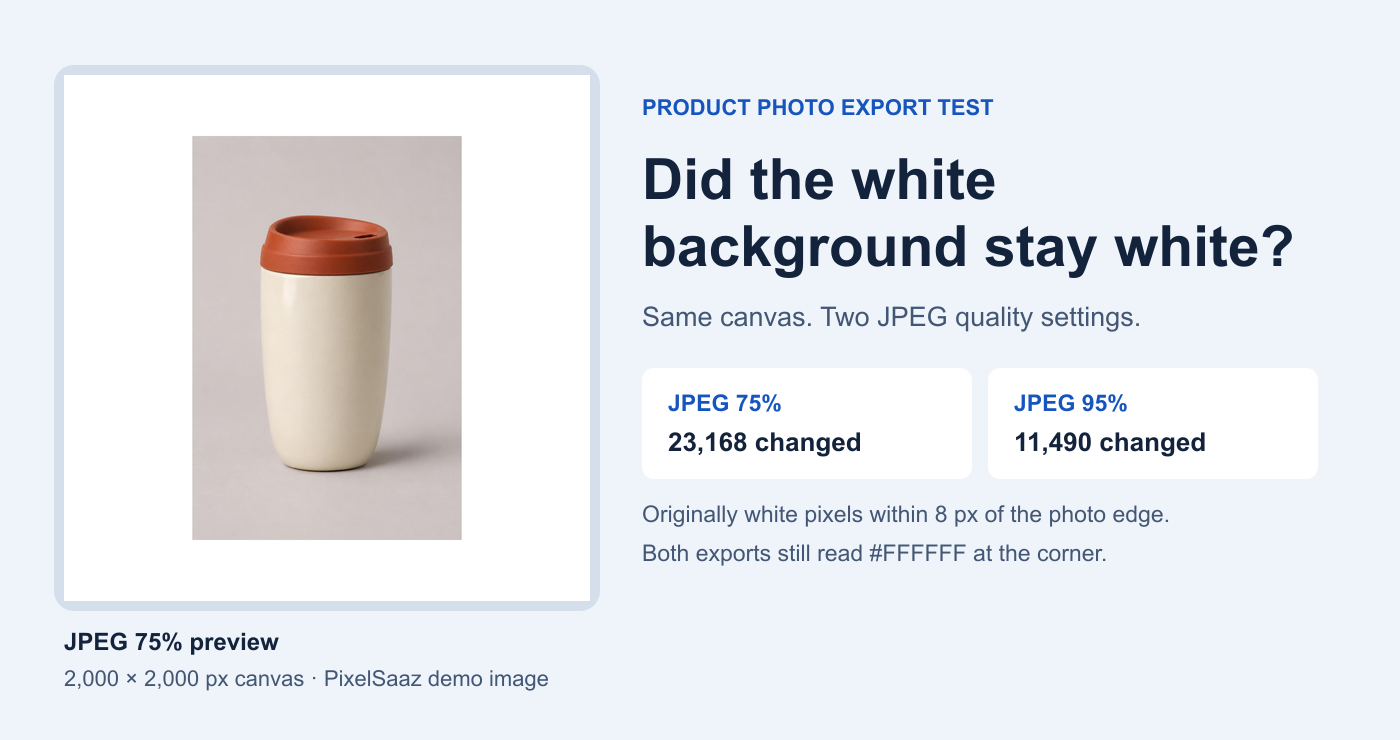
A reader asked whether JPEG compression could change a pure white border after export. The corner came back as RGB 255, 255, 255 at both JPEG settings. Closer to the photo, one color channel dropped to 252 in the 75% export. A single eyedropper sample in the corner would have missed it.
This matters when you prepare an Amazon main image. Its published guidance specifies a pure white background. The images here are demos for measuring exported pixels. Amazon Seller Central image requirements
How we tested the exported files
We used the PixelSaaz Amazon Image Resizer with two inputs. One was a travel mug demo with a light background. The other was a synthetic color block with a dark teal edge to make changes at a high-contrast boundary easier to spot.
Both JPEG exports used the same 2,000 × 2,000 pixel canvas and the same placement in Chrome. We exported the original inputs at 75% and 95% quality on a local production build. We also created a lossless PNG control from the same sources and placements to measure the starting pixel values. W3C PNG specification
We counted pixels that were pure white in the PNG control and lay within the first eight pixels of padding outside the original photo rectangle. That isolates added padding from the product and its existing background.
The corner stayed white. The seam changed.
For the travel mug, the eight-pixel band contained 41,216 originally white pixels.
- JPEG at 75% 23,168 pixels changed, about 56% of the band. One sampled pixel read 252, 255, 255.
- JPEG at 95% 11,490 pixels changed, about 28% of the band. A different sampled pixel read 255, 254, 251.
- Lossless PNG control All 41,216 counted pixels were 255, 255, 255.
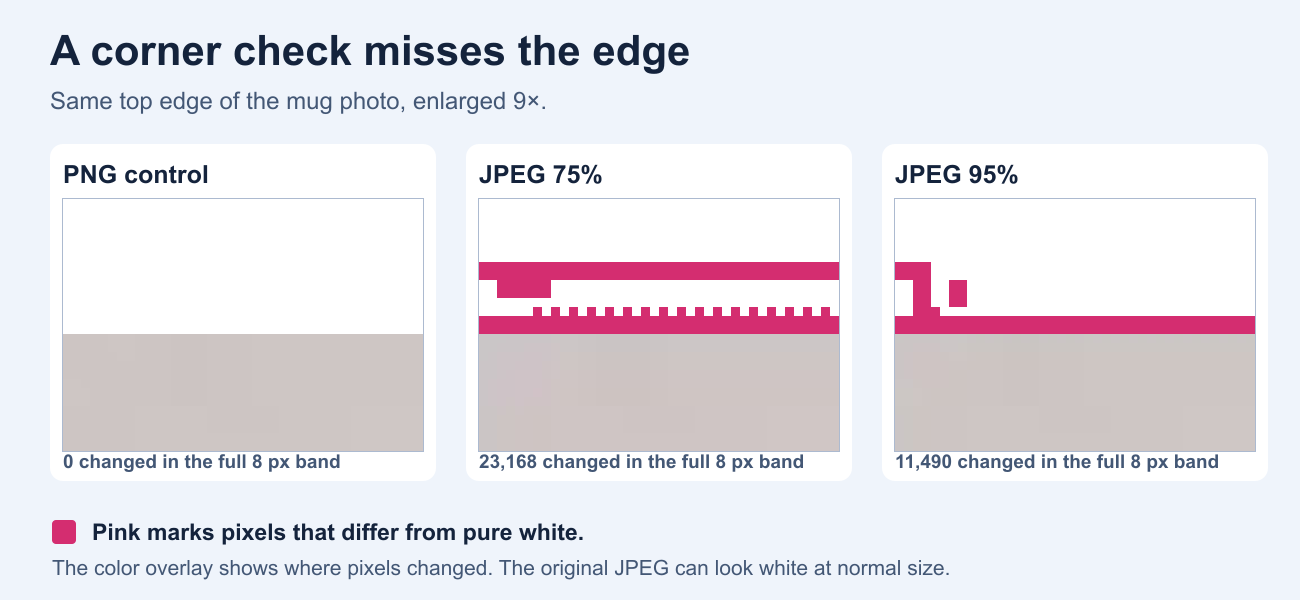
The 95% JPEG changed fewer white pixels in this band. It also grew from 55,573 bytes to 112,182 bytes. The dark teal test changed 31,286 pixels at 75% and 18,974 at 95% in its own eight-pixel band. In both fixtures and both JPEG exports, all originally white padding more than 16 pixels from the photo rectangle stayed pure white.
Common JPEG encoding reconstructs pixels after lossy compression. Reconstructed color can vary near a boundary, especially where white meets a strong color or tone. The exact pattern depends on the image, the encoder, and the settings. JPEG technical specification
A quick check before you publish
- Open the actual export. Use an image editor’s eyedropper in single-pixel mode if it offers that setting.
- Sample in two places. Check a corner, then zoom in and check several points just outside the edge where the photo meets the padding. Compare them with 255, 255, 255.
- Preview at listing size on white. Look for a visible rectangle or tint around the photo. The pixel check catches subtle changes, and the thumbnail shows what shoppers are likely to see.
- Choose the export for the destination. Keep a lossless master if exact pixels matter. Compare PNG if the destination accepts it. For JPEG, re-export from the original and check the final file again.